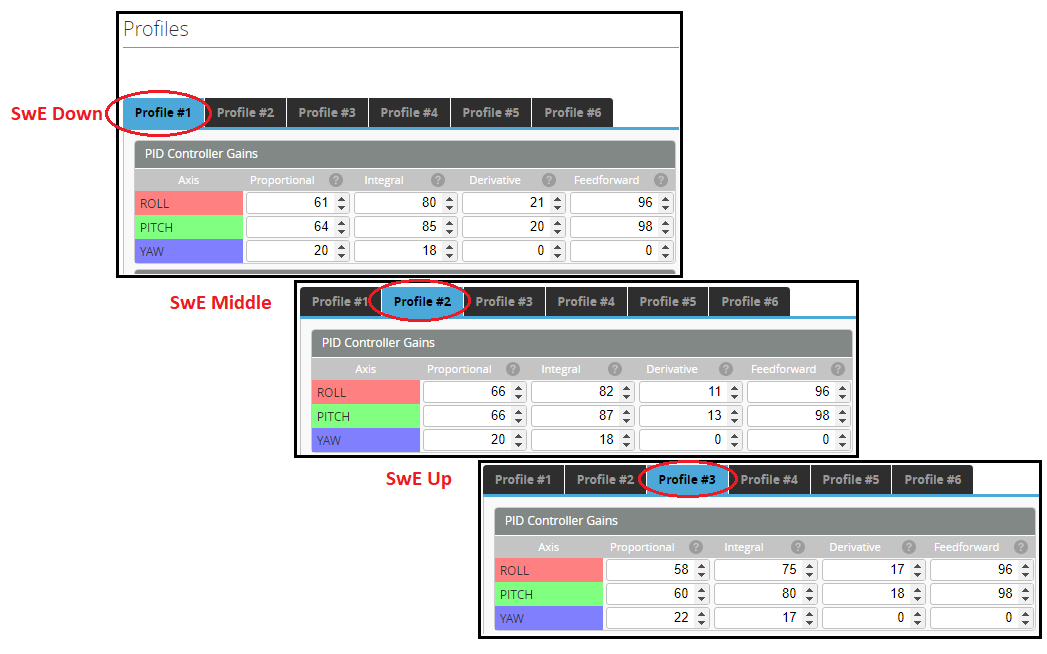
Profile (Bank) switching example
Purpose
We often configure several flight modes to suit our own flying requirements e.g. (Futaba - Normal, IU1, IU2)(OpenTX - FM1, FM2, FM3). It is quite possible that with each of these flight modes we would want to adjust and tune the model independently. We can do this through the Adjustments tab. This is a similar feature to V-bar 'Bank switching'. The following example is just a suggestion and is one way to go about using the adjustments tab. The same process can be used to switch rates if required.
Aim
My helicopter has already been set up to have a 3 position switch (SwE) which selects between 3 headspeeds (I use the governor so my 'curves' are just flat). The following example will add switching of tuning parameters (Profile Tab) for each of these headspeeds.
Configure the Tx
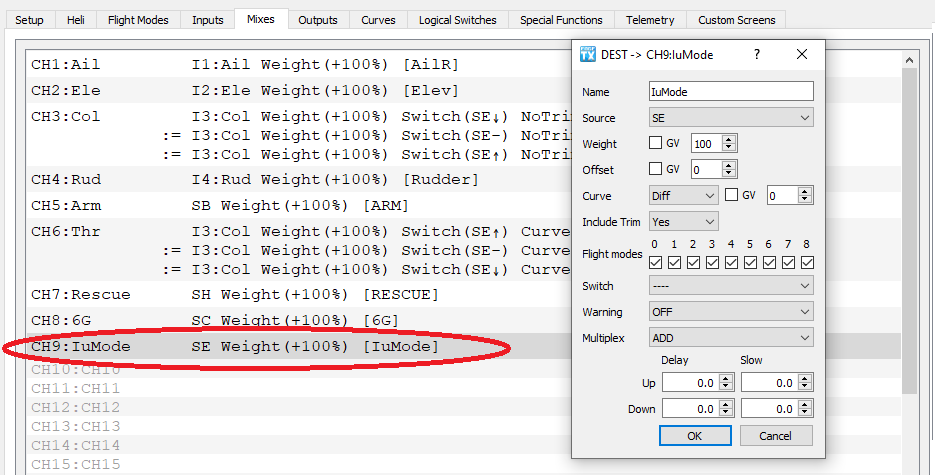
We need to assign a spare channel to your 3 position switch (SwE) (can be any channel or switch).
NOTE This example shows the process for EdgeTX (same for OpenTX) but is really the same process for any transmitter.
Step 1: Assign Ch9 to the SwE in the Mixers tab
Configure flight controller
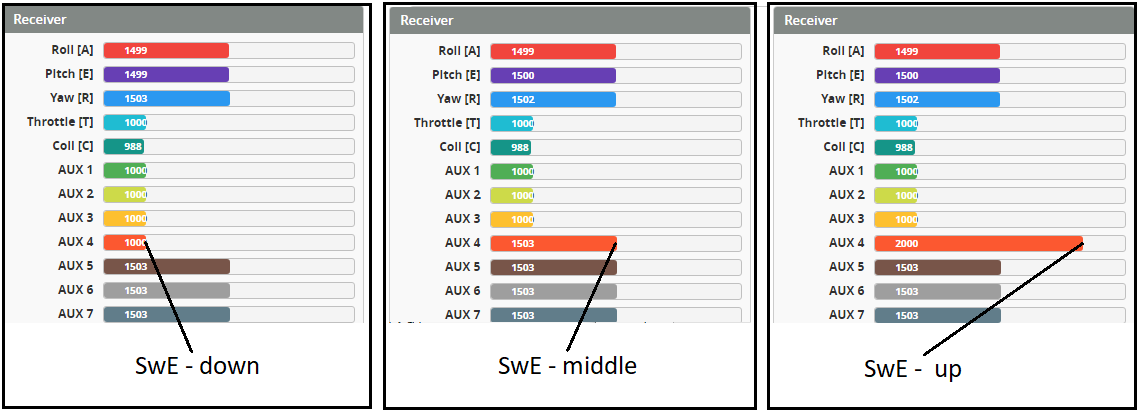
Step 2: looking at the channels in the receiver tab we can see that Aux4 is the ninth channel. This matches our TX assignment from step 1. Confirm the 3 position switch changes the value seen on Aux4,
Step 3:
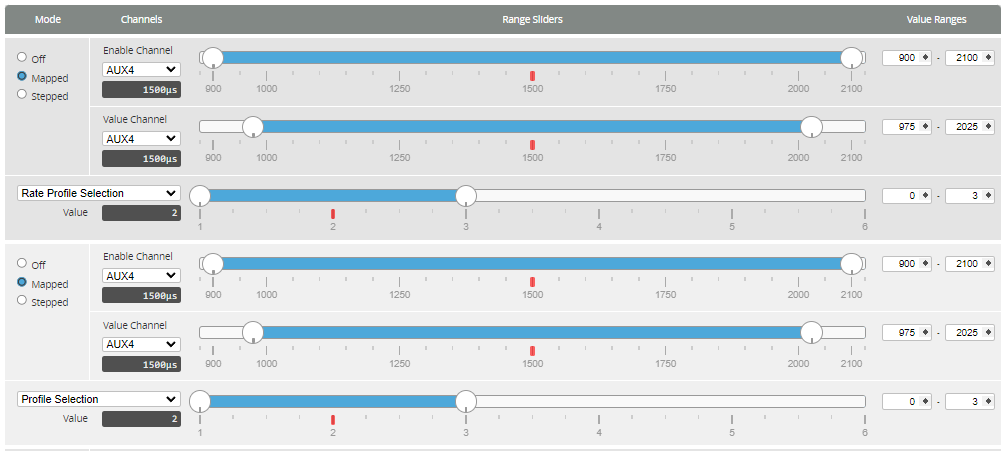
- Go to the Adjustments tab. Enable an adjustment slot by selecting Mapped and select Aux4 as the Enable Channel and Value Channel.
- Stretch the Enable Channel and Value Channel sliders across the entire channel range. This covers the positions for each of the three switch positions.
- Select Profile Selection from the dropdown. This means we want to change the 'Profile selection' by the switch position.
- Stretch the Profile Selection slider from 1 to 3, This means over the defined range a value of 1-3 will be chosen based on the switch position. (e.g. SwE down = 0, SwE middle = 1, SwE up = 2). These values are added to the Profile so will result in (e.g. SwE down = Profile 1, SwE middle = Profile 2, SwE up = Profile 3).
Step 4: Go to the Profiles tab and test and confirm that changing the switch position results in changing of the current Profile.