Rotorflight Lua Scripts
Introduction
You can configure the system directly from your transmitter using the Rotorflight Lua scripts. Once installed, the scripts add dedicated pages to the transmitter UI, providing access to parameters such as PID tuning, rates, filters, servo settings, and governed head speed—without needing a computer at the field.
Prerequisites:
- Ethos 1.4 or newer on the transmitter and:
- an FrSky SmartPort or F.Port receiver.
- or a CRSF v2.11 or newer receiver.
- or an ELRS 3.5.0 or newer receiver.
If you're not using F.Port, start up the Rotorflight Configurator, go to the Configuration tab and enable the TELEMETRY feature. F.Port telemetry does not work without enabling this feature.
If telemetry is working properly on your system, the Lua scripts should work as well.
There are different Lua scripts depending on what radio you are using (edgeTX or Ethos).
1. Ethos Installation
Download the Latest Ethos Lua Suite release and save the zip file to your PC\laptop
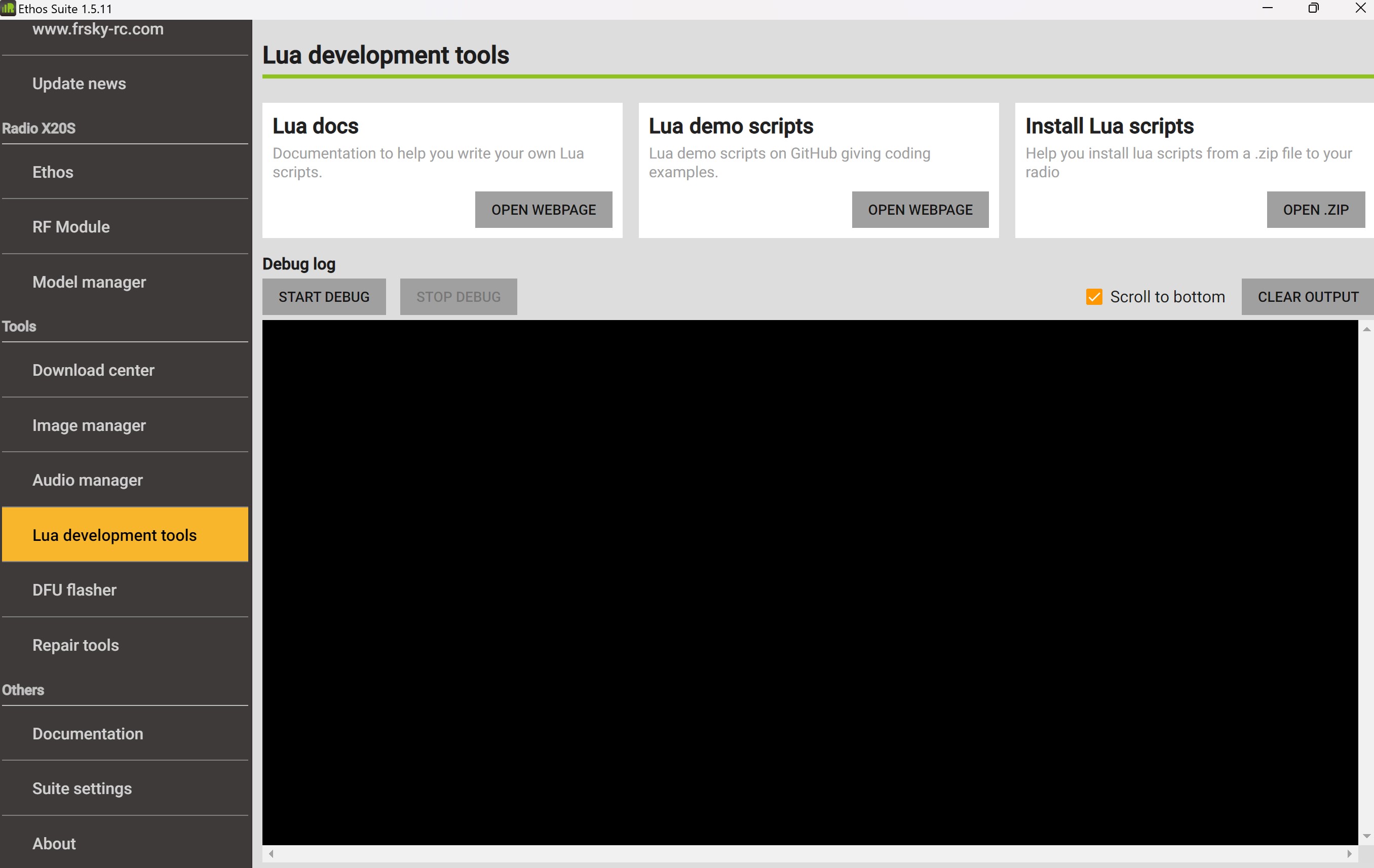
Open Frsky Ethos Suite and connect the USB-C cable, once connected, select Lua Development tools,
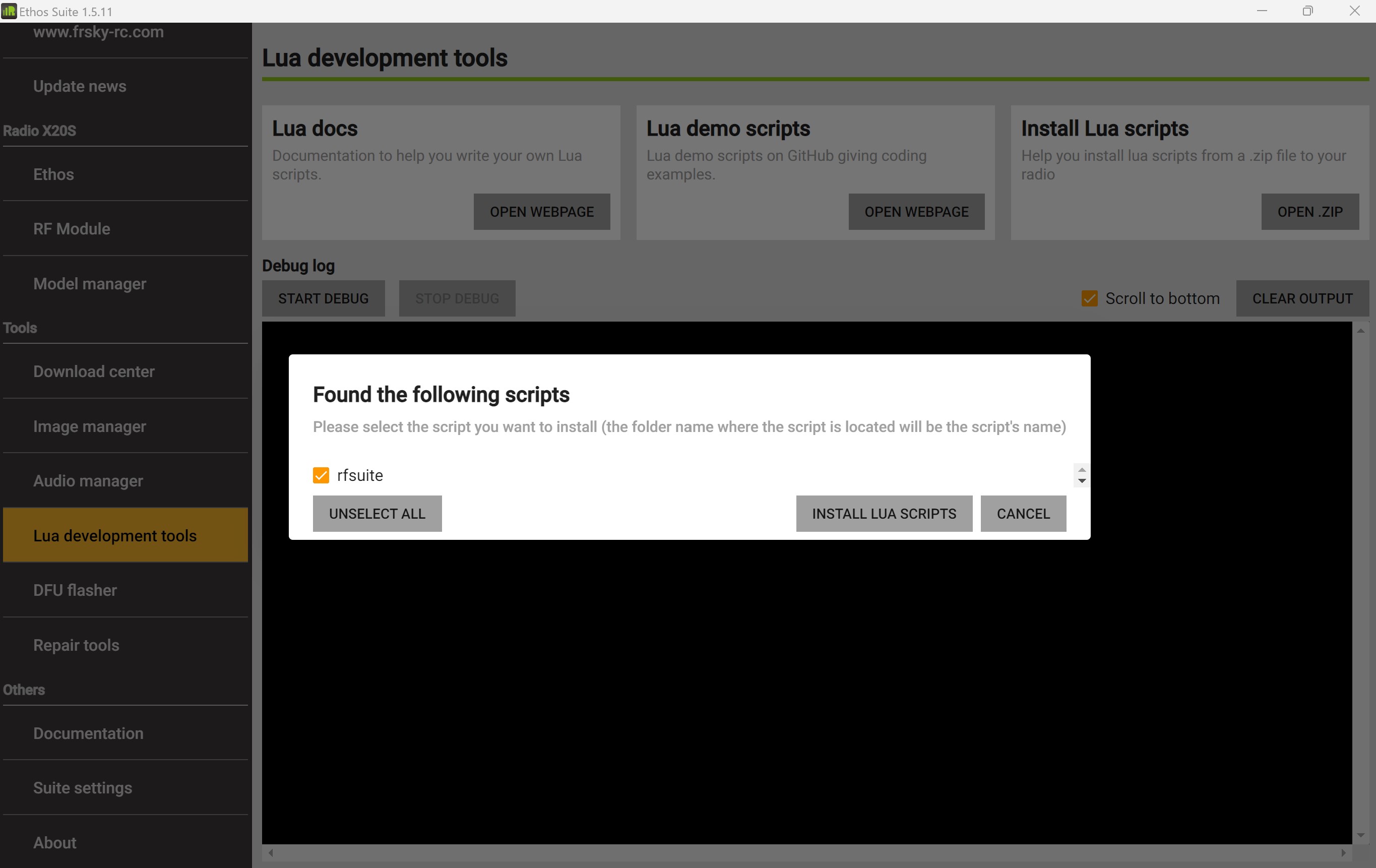
Select, Install Lua Scripts and choose the zip file from the download above, select rfsuite and Install Lua Scripts. Close Ethos Suite
Usage
Disconnect the transmitter and power off\on. Enter the model page.
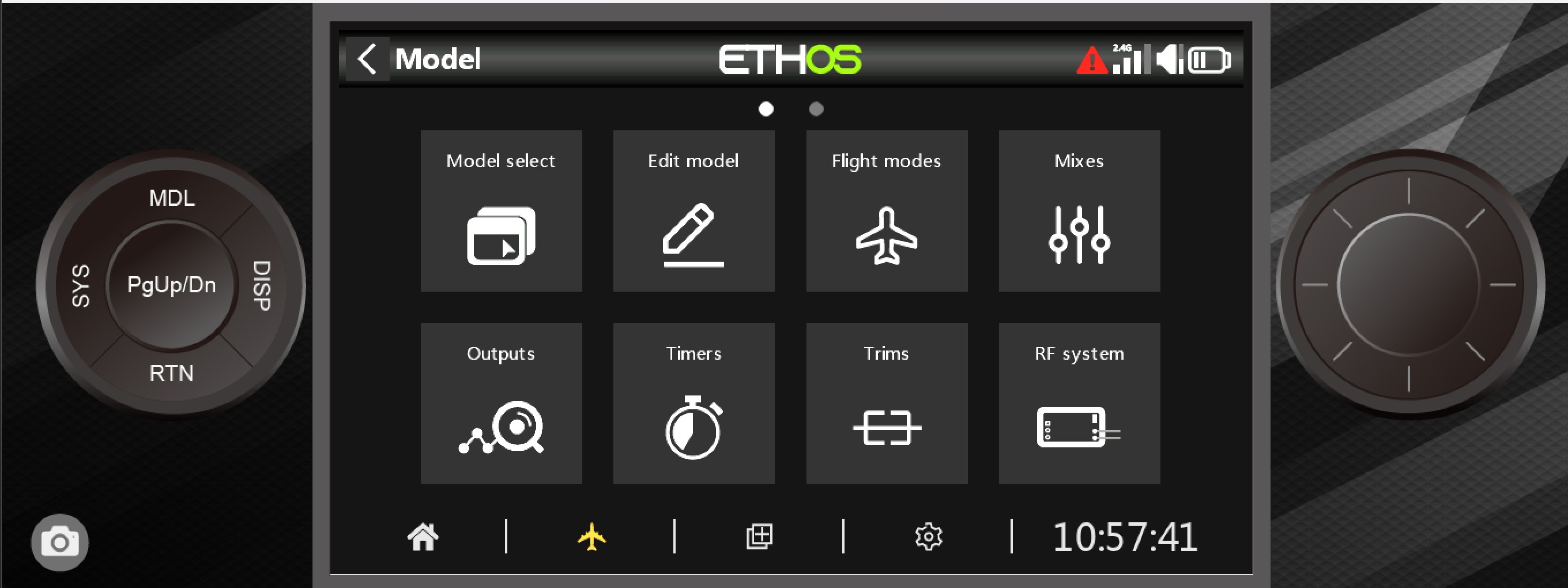
Scroll to the end and you should see this LUA Icon
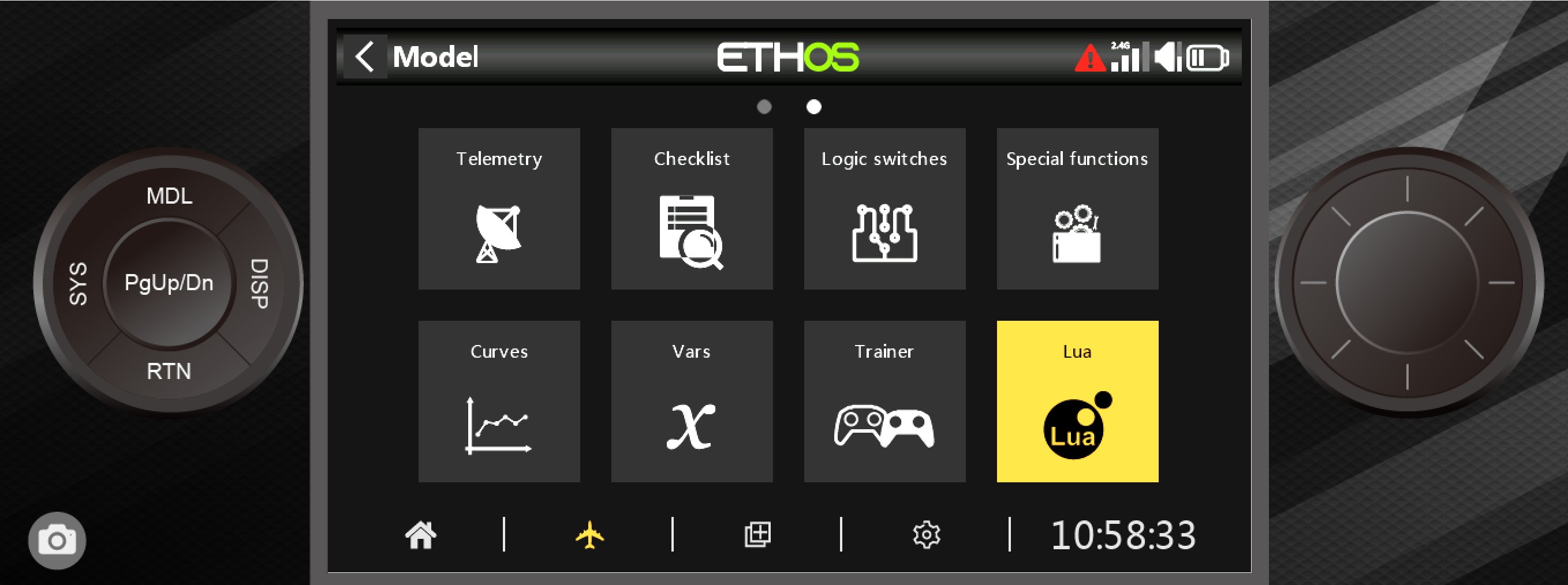
Please ensure this is set to ON. Return to the Main Menu
Press SYS key and scroll to the end page, the following should be shown.
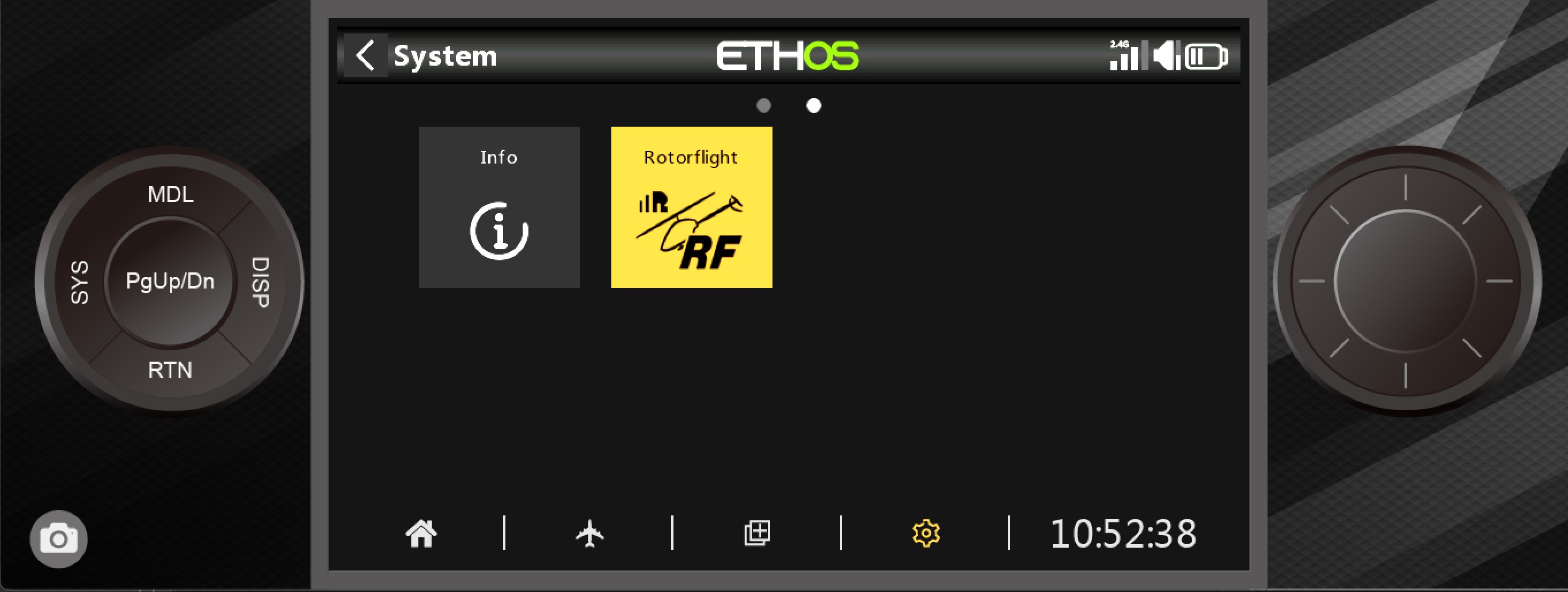
IMPORTANT: Changes will only be written to the eeprom when the aircraft is moved from Armed to Dis-armed, if you disconnect power when in an Armed state the changes will not be saved to eeprom. If installing for ELRS please see the separate section before returning to this section.
Ensure the aircraft receiver and FBL are powered, Select the ICON above and you should see the following:
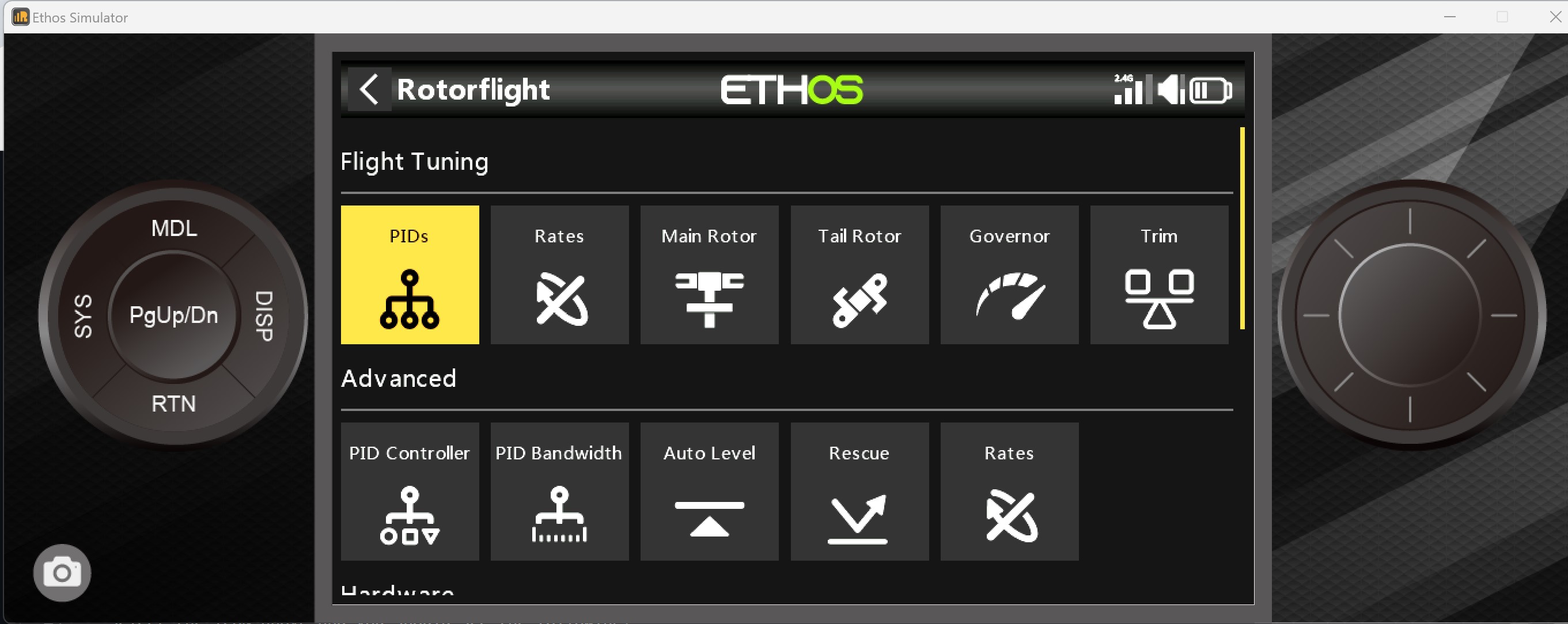
In the example below of the PID's screen:
PID's #1 - Will change depending on which profile you have your transmitter profile\bank switch set i.e. PID's #2, PID's #3 etc
MENU - Will take you to the top level menu (Please ensure you have clicked SAVE before exiting)
RELOAD - Will update the current page and read from the FC
SAVE - Will write your changes to eeprom
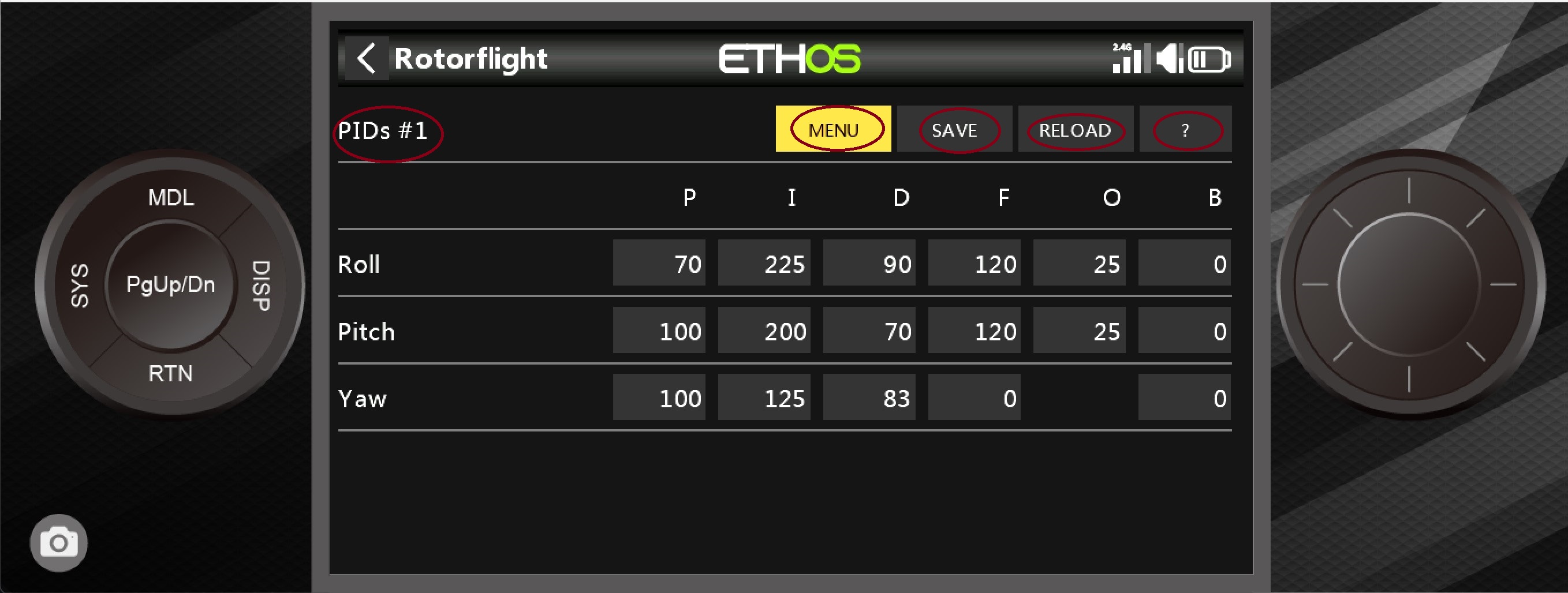
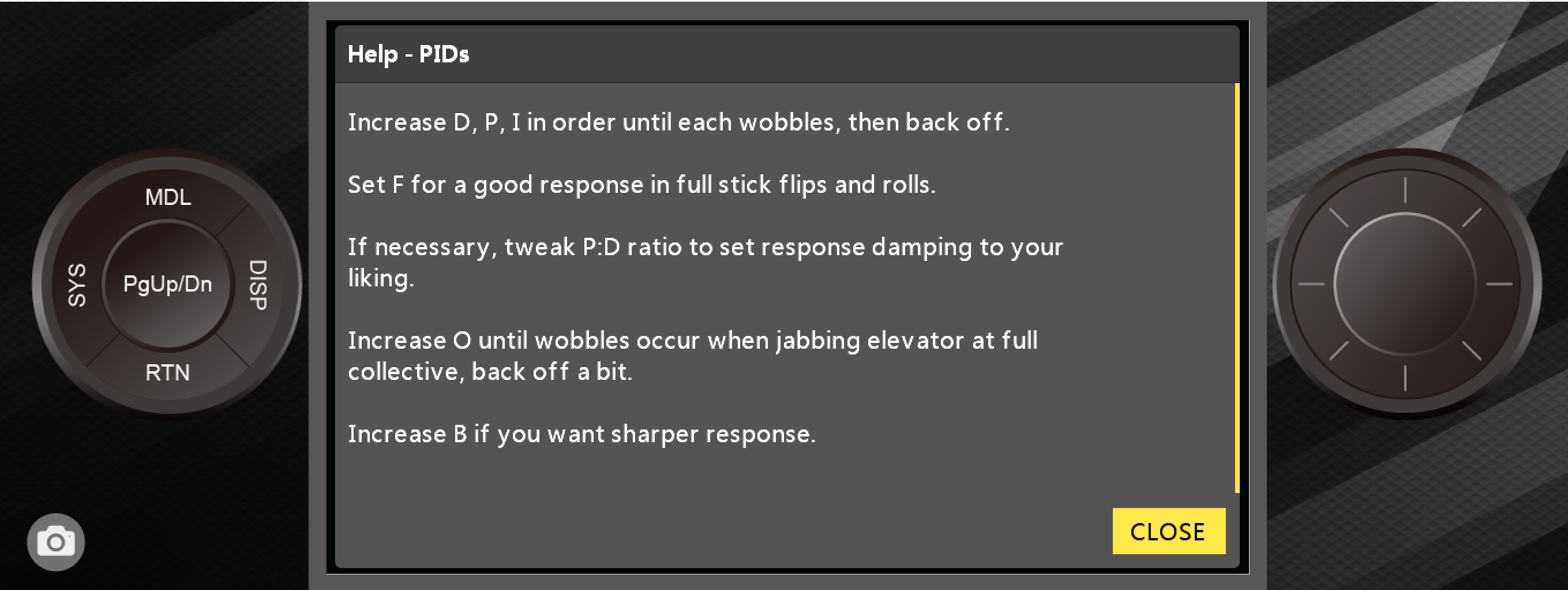
There is also a help screen (?) with useful information on tuning methods