Receiver
One of the first things you should do is to connect a receiver to the FC. Your FC has several UARTs, and each UART has a TX and an RX. A receiver needs to be connected to an RX and/or TX pad, depending on the type of receiver.
Receiver Configuration
First activate Serial Rx on the UART you have connected your receiver.

Receiver Options
-
Stick Center - adjust as required by your radio to achieve 0% when the ROLL, PITCH, YAW sticks are centered.
-
Stick Travel - adjust to achieve 100% at the sticks limits.
-
Cyclic Deadband and Yaw Deadband - With sticks centred, if your radio sends signals that cause drift in the Rates Preview window, adjust these values to the smallest possible settings that eliminate the drift.
-
Automatic Throttle Range - This will automatically set the throttle channel range based on the minimum and maximum values received from the receiver. This is the recommended setting for most users, as it will automatically adjust to any changes in your transmitter settings. If you disable this option, you will need to manually set the throttle channel range using the
Throttle Channel value for 0% throttleandThrottle Channel value for 100% throttleoptions.

- One Wire Communication -
The following options are only available on F7/H7 and G4 MCUs
- Inverted serial signaling - Some protocols such as SBUS and FPORT
- Pin Swap - This feature can be used to switch the RX and TX pins if your FC does not have a free UART RX or TX pin available. This is only available on F7 MCUs, and is not compatible with FPORT or SBUS.
Receiver Type
Please see the documentation for your FC for more details on how to connect your receiver. There are many receiver protocols supported in Rotorflight.
- It is preferable that a telemetry capable protocol be used with the Rotorflight LUA scripts to perform tuning using you radio.
- Protocols that do not have telemetry are still compatible with Rotorflight (and transmitters without Lua Scripting); however, Adjustments have to be configured in order to tune from your radio.
- Choose Rx
- ELRS
- S.BUS
- S.BUS2
- S.BUS + S.PORT
- F.BUS
- F.PORT
- Spektrum
- OTHER
Rotorflight has great support for both EdgeTX and Ethos. Please choose your radio.
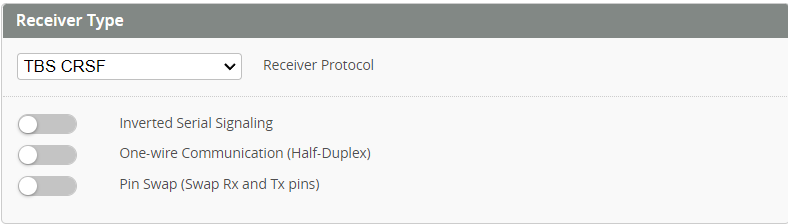
- CRSF/ELRS needs an RX and a TX on the same UART.
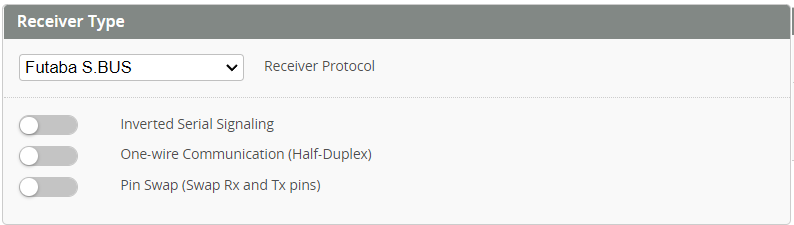
- SBUS needs to be connected to an RX pad.
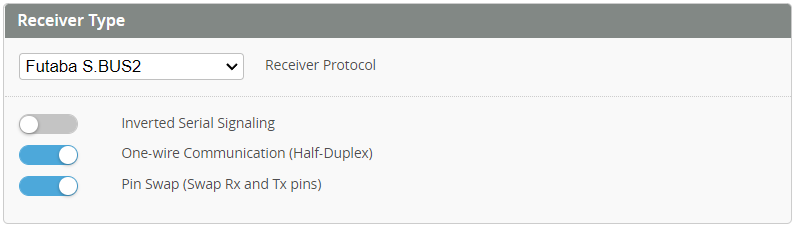
- SBUS2 needs to be connected to an TX pad.
- SBUS with S.Port: the SBUS pin needs to be connected to a free UART RX, and the S.Port pin needs to be connected to a free UART TX (of another free UART), and you activate
Telemetry: FrSky SmartPorton that UART.

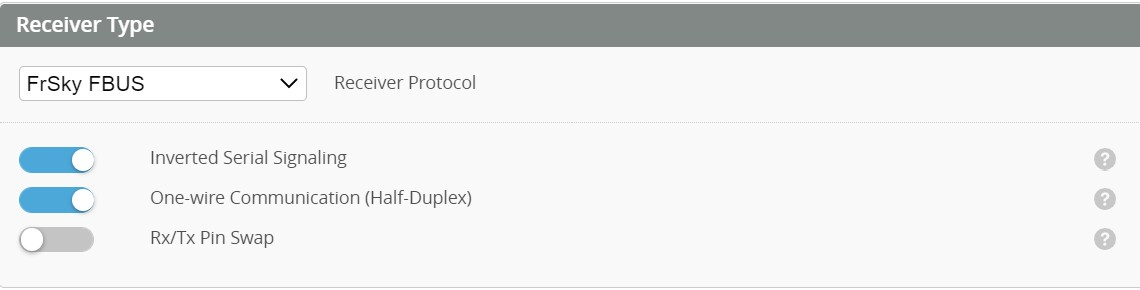
- F.Bus needs to be connected to a TX pad, with
Inverted Serial Signalingactivated ,andHalf-Duplexactivated. F.Bus is the preferred Frsky connection method, its faster that F.Port
- F.Port needs be connected to a TX pad, with
Inverted Serial Signalingactivated ,andHalf-Duplexactivated.
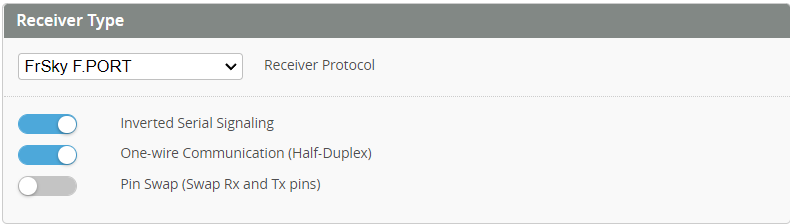
note: The Inverted Serial Signaling option will work only on F7/H7 or G4 type mcu, if you are using an F4 mcu, then you need to use and external signal inverter, or hack your receiver to get an Un-Inverted signal for SBUS, S.Port, and F.Port. for more info check Uninverted SBUS and Smart Port on Frsky Receivers
There are a lot of different Spektrum Receivers and connections. Please review the list below for your particular receiver.
| Type | Modulation | Supply Voltage | UART I/O pin | RX Protocol | Telemetry |
|---|---|---|---|---|---|
| SPM9545 | DSM2 | 3.3V | Rx | DSM/1024 | No |
| SPM4645 | DSM2 | 3.3V | Rx | DSM/1024 | No |
| SPM4645 | DSMX | 3.3V | Rx | DSM/2048 | No |
| SPM4648 | DSM2 | 3.3V | Rx | DSM/1024 | No |
| SPM4648 | DSMX | 3.3V | Rx | DSM/2048 | No |
| SPM4649T | DSMX | 5V (4V - 8.4V) | Tx | DSM/SRXL | Yes |
| SPM9745 | DSMX | 3.3V | Rx | DSM/2048 | No |
| SPM9746 | DSMX | 3.3V | Rx | DSM/2048 | No |
| SPM4650(C) | DSMX | 5V (3.3V - 8.4V) | Tx | DSM/SRXL2 | Yes |
| SPM4651T | DSMX | 5V (3.3V - 8.4V) | Tx | DSM/SRXL2 | Yes |
| SPM9747 | DSMX | 5V (3.3V - 8.4V) | Tx | DSM/SRXL2 | Yes (Fly By) |
Notes:
- SRXL and SRXL2 uses One-Wire bidirectional half-duplex connection, firmware sets this automatically so there is no need to manually select this. But it does not hurt to do it either.
- Leave Inverted Serial Signaling Off.
- Rx/Tx Pin swap can be used with SRXL/SRXL2 if no Tx pin is available on the FC connector, but with F7 MCUs only.
- Full size SRXL2 receivers are not supported by RotorFlight
- Binding. SRXL2 Remote receivers can be bound by using RFC gui bind button or the button on the receiver. Other receivers can use cli commands, see: https://betaflight.com/docs/development/spektrum-bind
If your receiver is not listed here it may still be compatible. Rotorflight can operate with all receiver protocols compatible with Betaflight. Please see the betaflight website and your Receiver documentation for more information.
Receiver Channels
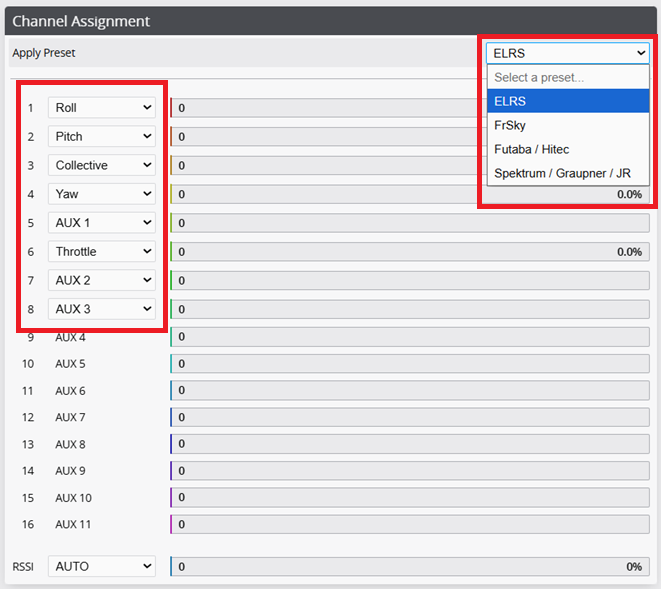
Either select a preset from the apply preset dropdown matching your receiver type or use the individual channel dropdowns to allocate each receiver channel to the desired function.
Channel Range
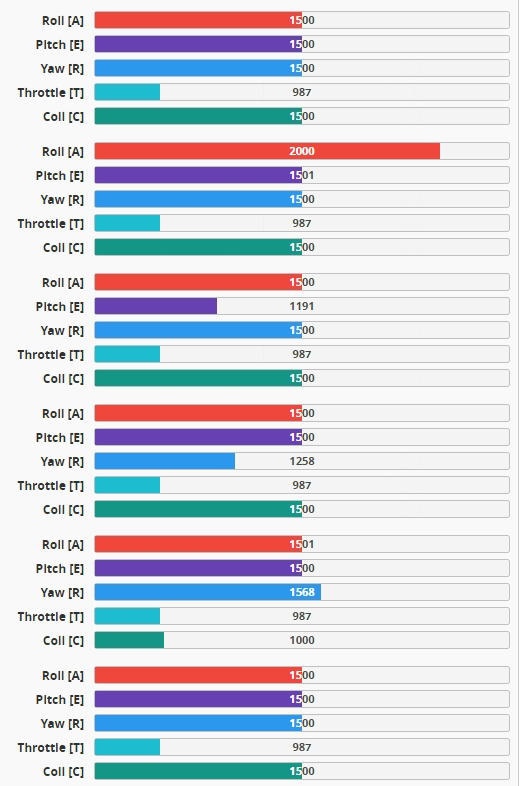
- Stick Center - adjust as required by your radio to achieve 0% when the ROLL, PITCH, YAW sticks are centered. For some receivers (e.g. ELRS) this is 1500. When your Tx sticks are at centre your Receiver channel should match Stick Center. You may need to calibrate your transmitter sticks to achieve this. For example, on EdgeTX you can set the Subtrim value for each stick to achieve the desired value.
Calibrating Stability Mode The stability modes (Angle, Horizon or Rescue) can be calibrated so that the heli doesn't drift much when using such a mode. This can only be done via the accelerometer trims. Do not use trim on your transmitter.
You should end up with something similar to this:
- Stick Maximum Travel - adjust achieve 100% at the sticks limits.
- Cyclic Deadband and Yaw Deadband - If your transmitter has some variation on its values when at centre stick, adjust to the smallest possible value that doesn't make your model move in the Rates Preview window. For example, if there is +-2uS variation in the channel. Set the deadband to 3-4uS.
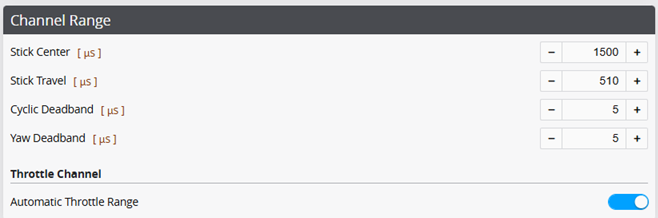
- Automatic Throttle Range - This will automatically set the throttle channel range based on the minimum and maximum values received from the receiver. This is the recommended setting for most users, as it will automatically adjust to any changes in your transmitter settings. If you disable this option, you will need to manually set the throttle channel range using the
Throttle Channel value for 0% throttleandThrottle Channel value for 100% throttleoptions.

Telemetry Sensors
Use the below switch to enable/disable the telemetry stream sent to your radio. Each sensor can then be enabled or disabled individual depending on your requirement.
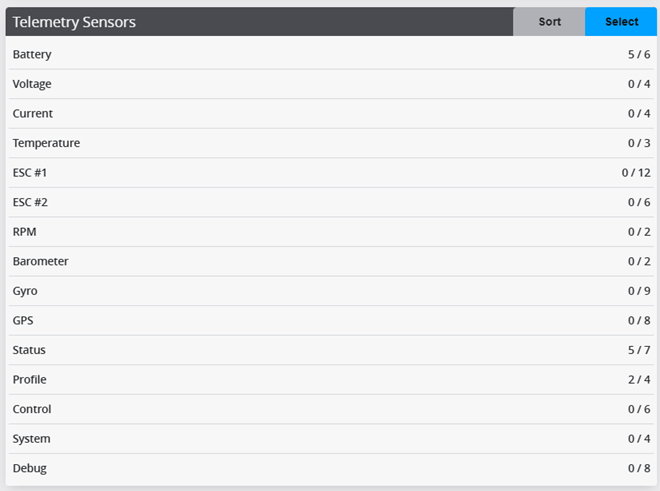
For ELRS receivers, follow the ELRS Custom Telemetry page for how to setup. This is new for Rotorflight 2.1 and ELRS Reuse is no longer available.