Dashboard
The suite includes a dashboard widget for the model's home screen. It shows the state of the model at a glance, and changes its layout for before, during and after a flight.
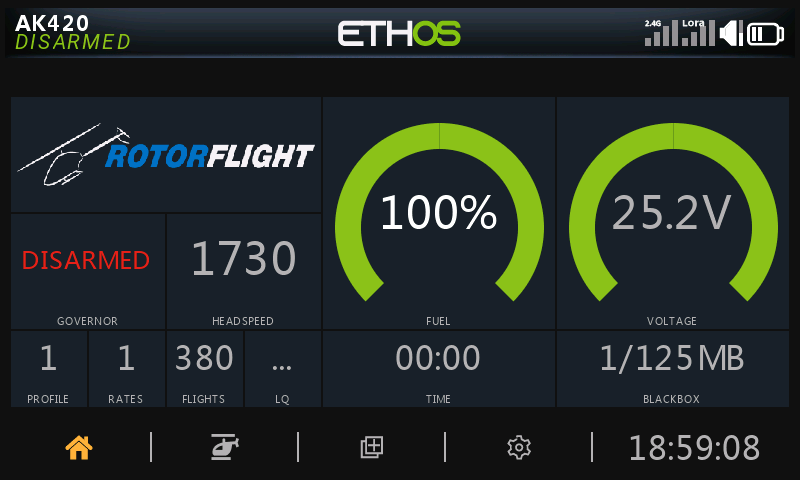
Adding it to a screen
The widget is called Rotorflight Dashboard. On the radio, press DISP to configure the model's screens, pick a full-screen layout for the screen you want, and choose Rotorflight Dashboard as its widget.
Themes
A theme decides what the dashboard shows and how. Each theme has three layouts: preflight before you arm, inflight while you fly, and postflight after you land, and the dashboard switches between them by itself.
Choose the theme under Settings → Dashboard: a default for all models, and optionally a different one for a particular model. Some themes have options of their own, under Settings on the same menu.
Toolbar
Swipe up on the dashboard, or long-press PAGE, to open the toolbar. It closes by itself after 10 seconds, or swipe down.
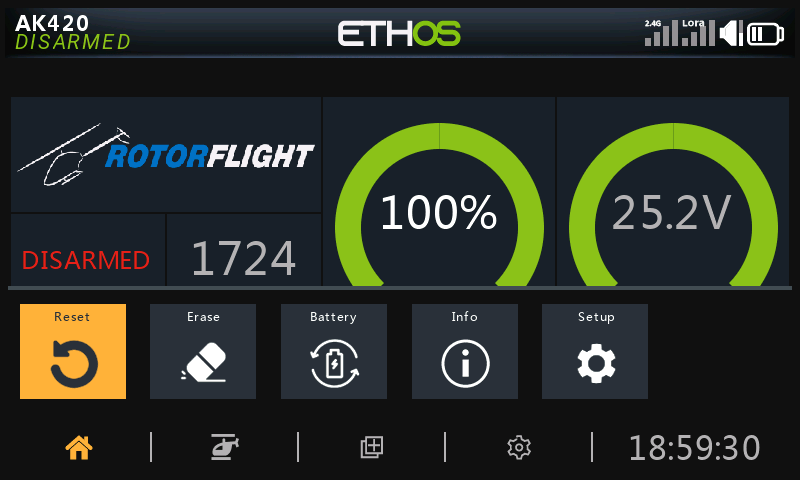
| Button | What it does |
|---|---|
| Reset | Resets the flight's timers and minimum and maximum values, after asking. |
| Erase | Erases the flight controller's blackbox log memory, after asking. Greyed out until the model is connected. |
| Battery | Picks the battery profile. Greyed out until the model is connected, or if fewer than two battery profiles are set up. |
| Info | Opens the info panel (below). |
| Setup | Opens the Rotorflight app. Needs Ethos 26.1 or later. |
Info panel
Swipe down on the dashboard, or pick Info on the toolbar, for a summary of the model's state. It stays open until you swipe up, tap the dashboard, press RTN or ENTER, or arm the model.
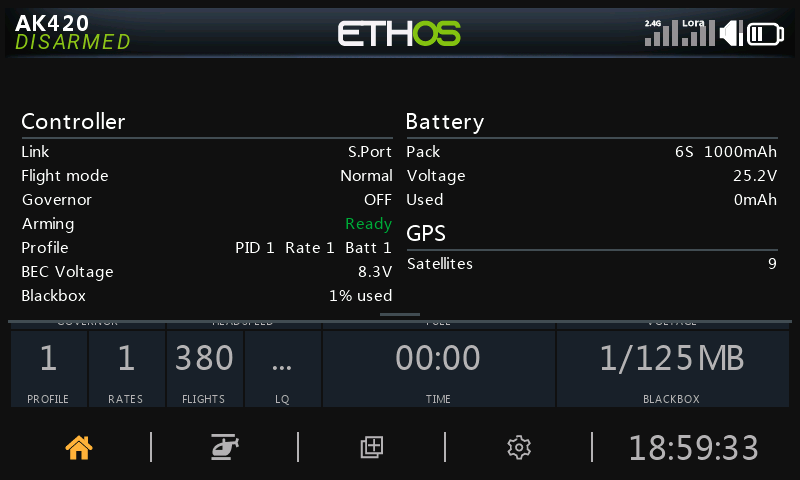
| Shows | |
|---|---|
| Controller | The telemetry link and its quality, the flight mode, the governor state, whether the model is ready to arm (and if not, why), the active profiles, BEC voltage and how full the blackbox is. |
| Battery | The active battery profile's cells and capacity, the pack voltage and the mAh used. |
| GPS | Only when the model has a GPS: the fix and the satellite count. |
A row appears once its value is known. With no model connected, both columns say Not connected.