Installing the Lua Suite
1. Download
Download the suite from the
releases page
(see also Download - Ethos Tx Lua). Each
release has one zip per language, for example
rotorflight-lua-ethos-suite-2.3.0-en.zip for English. Pick the release that
matches your firmware version.
2. Put it on the radio
Use either way:
- Ethos Suite: connect the radio by USB, open Lua Development Tools, choose Install Lua Scripts, and select the zip.
- By hand: connect the radio by USB as a drive, unzip the download, and
copy the
rfsuitefolder into thescriptsfolder on the radio. Replace the oldrfsuitefolder if there is one.
Then unplug the radio and restart it.
3. Turn on the background task for your model
The suite does its work in a background task that each model has to turn on. On the radio, open the Model menu, go to page 3, and open Lua. Turn Rotorflight [Background] on.
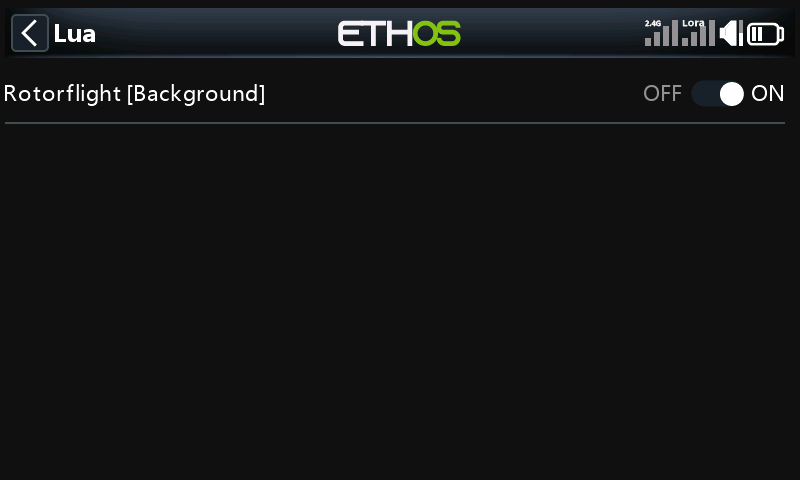
Until it is on, every tile in the app shows Background task not running when you press it. See also Ethos Background Task Notification.
4. Check telemetry
The app talks to the flight controller over telemetry, so the radio needs a working link to the receiver:
- In the Model menu, RF system, make sure the RF module you fly with is turned on.
- Power up the model, then open Model → Telemetry and discover sensors if the list is empty.
If the suite reports missing sensors, see Ethos Missing Sensors. For the flight controller side, see Receiver: Telemetry Sensors.
5. Open the app
Press SYS on the radio and go to the second page. The Rotorflight tile opens the app.
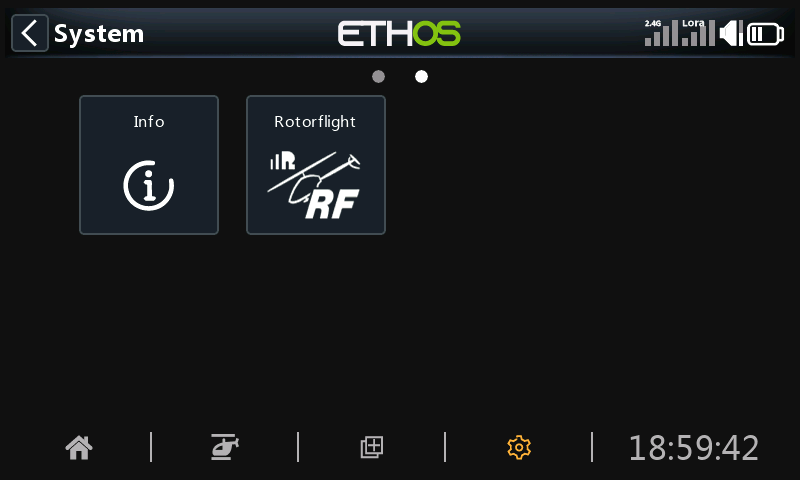
With the model powered and connected, every tile in the app can be opened. Without a connection, only Logs and Settings work: everything else needs the flight controller. Continue with Using the app.
Updating
Install a new release the same way. Your app settings (under Settings)
are kept in a separate folder, scripts/rfsuite.user, so replacing the
rfsuite folder does not lose them.