Using the App
Menus
The app opens on its main menu. Every menu is a grid of tiles, sorted under headings. A tile either opens another menu or a settings page.
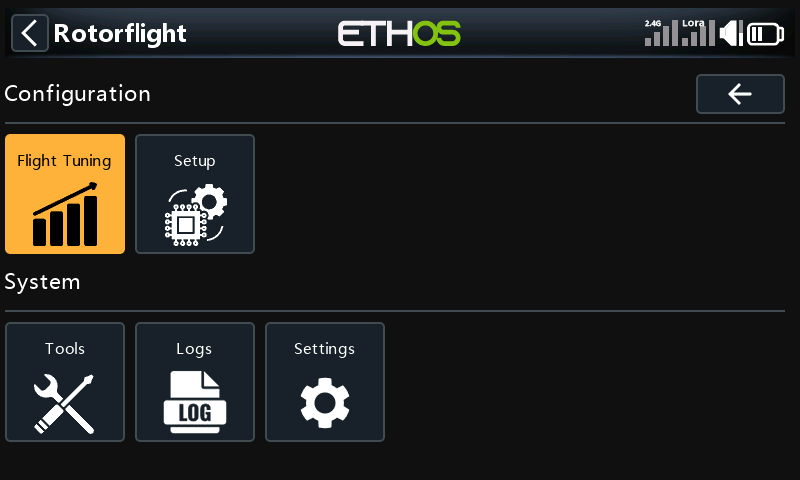
You can use the touchscreen, or the rotary encoder: turn it to move between tiles and press it to open one. When you go back to a menu, the tile you last opened is still selected.
Tiles stay greyed out until the radio is talking to the flight controller. Logs and Settings are the exception: they are stored on the radio, so they work with the model switched off.
The header
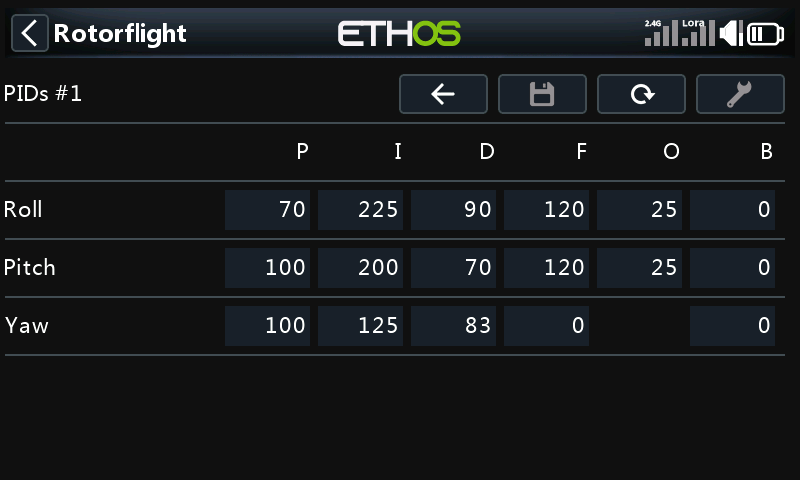
Every screen has a header row: the page's title on the left and its buttons on the right.
| Button | What it does |
|---|---|
 Back Back | Goes back to the previous menu. RTN on the radio does the same. |
 Save Save | Writes the page to the flight controller. |
 Reload Reload | Reads the page from the flight controller again, discarding changes you have not saved. |
 Tool Tool | The page's own extra action, where it has one (see below). |
Menus show only the Back button. On a settings page all four are there, but a button is greyed out when it can't be used. For example, Tool is grey on pages that have no extra action.
Pages that belong to a profile show its number in the title, such as PIDs #1. The number follows the profile the flight controller is using, so if you switch profiles from the radio, the page follows.
A long title loses its leading parts to fit, for example ... / ESC temp instead of Settings / Audio / ESC temp on a small screen.
Changing and saving settings
- Open a page. The suite reads it from the flight controller; a Loading dialog shows while it does.
- Change a value: tap it, or select it with the encoder and press, then turn.
- Press Save. It only lights up once you have changed something.
- Confirm Save current page to flight controller?
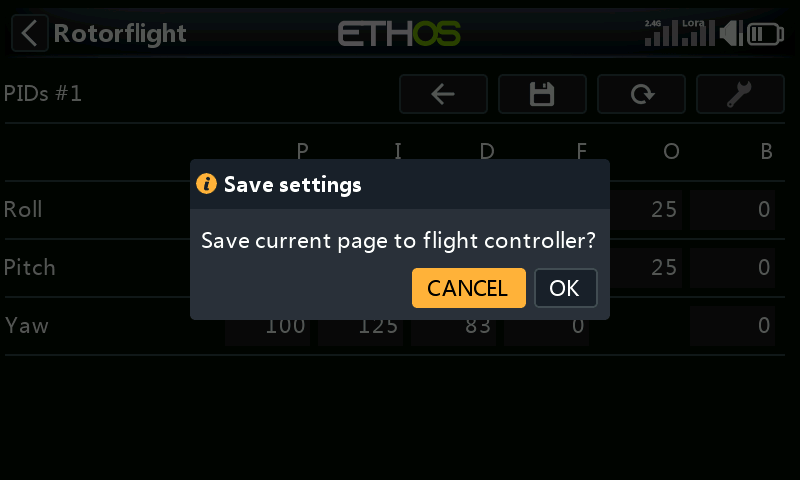
The flight controller keeps the change for good once it is saved. If you would rather not be asked each time, turn the save and reload prompts off under Settings → General → Safety Prompts.
Save is greyed out while the model is armed. If the flight controller refuses a save because the model armed while it was being sent, a red banner says Save not committed: your changes are kept and written as soon as you disarm.
Use Reload to throw away changes you haven't saved. It asks Reload data from flight controller? first.
The Tool button
These pages have an extra action behind Tool:
| Page | Tool does |
|---|---|
| Accelerometer | Calibrates the accelerometer. Keep the model level and still. |
| Alignment | Turns the 3D view so the tail faces you. |
| Telemetry | Selects the default telemetry sensors. |
| Mixer: Geometry | Turns swash setup mode on or off, so you can level the swash. Turn it off to give mixer control back to the flight controller. |
| Mixer: Trims | Turns mixer override on or off, for setting the trims. Turn it off to give the servos back to the flight controller. |
| Servos | Turns servo override on or off. While it is on, a servo's centre moves as you change it, so you can trim it by eye. |
| Blackbox Status | Erases the onboard log memory. |
| Tune Advisor | Clears the flight data the advisor has collected. |
Each one asks before it does anything.